Client Portal Overview
Welcome,
Welcome to your dashboard
Onboarding Forms
Fill these in so we can build your offer, ads and funnel.
Client Onboarding
Six short steps. Watch each video, fill in the forms and book your onboarding call. Your answers save to your dashboard.
Tech Setup
Watch the Meta access video, then fill in the form underneath it. Your answers save to your dashboard.
To-Do List
Every step from onboarding to launch. Switch between your tasks and ours. Tick your tasks off as you finish them.
Assets
Everything we have built for your campaign.
Tracking Dashboard
How your ads and calls are performing.
Traffic
Calls
Funnel
Efficiency
Sales Call Recordings
Every sales call for , newest first. Click a call to see our feedback.
How To Guides
Step-by-step guides and walkthroughs for everything on your side.
Leave a Testimonial
Enjoying working with us? A written or video testimonial helps other business owners find us. It takes two minutes.
- Before. Where was the business before we started?
- Why us. What made you decide to work with us?
- The work. What was the process like?
- Results. Calls booked, clients closed, revenue, time saved. Numbers are great.
- Who for. Who would you recommend us to?
Film in landscape, face a window, keep it under 2 minutes. Just talk, it doesn't need to be perfect.
Wins
Every milestone and result since we started working together.
Latest wins
How to follow up with leads
The exact process to run before and after every booked call, word for word, plus how to send a personal selfie video by text from your phone.
Before the call
Do this as soon as the call is booked, and no later than 4 hours after. The gap between booking and the call is where most no-shows happen. A short personal video closes that gap, makes sure the calendar invite landed, and means the prospect turns up already knowing who you are.
First open the calendar and check if the appointment is confirmed or unconfirmed. The messages you send depend on which one it is.
Appointment unconfirmed
Hey NAME, [your name] here from [company name]
Hey NAME, [your name] here from [company name]. Thanks for booking in a call, I've just taken a look through your application and we can definitely help, so I'm excited to share how everything works. Could you do me a quick favour and check your email to make sure you received the calendar invite ok? We've been having some issues getting them delivered recently. If you could either reply to this message letting me know you've received it or go ahead and accept the calendar invite that would be great. If you haven't received it, just let me know and I'll get it sent back out to you.
Did you see the video I sent through?
Appointment confirmed
Hey NAME, [your name] here from [company name]
Hey NAME, [your name] here from [company name]. Just wanted to reach out and introduce myself before our call at day/time/timezone. I've taken a look through your application and we can definitely help, so I'm excited to walk you through how everything works. Below this video I'll pop a link to some resources that might be helpful to check out before our call. I look forward to speaking with you soon.
Here we go - [link to booking confirmation page]
After the call
First 7 days: follow up by hand
- Don't add them to an automation yet. A personal message from the person they spoke to beats any sequence at this stage
- Contact them at least twice in the first 7 days
- Both messages come from the person who ran the call
After 7 days: value sequence
- Add them to a value-based email sequence that contacts them at least twice a week
- Don't rely on email alone. Mix in calls and SMS to bring old leads back
- Lead with value, not "just checking in"
- Keep going. Most deals from old leads come from the follow-up nobody else sends
How to send a video by SMS
Everything above is done from your phone in the Lead Connector app.
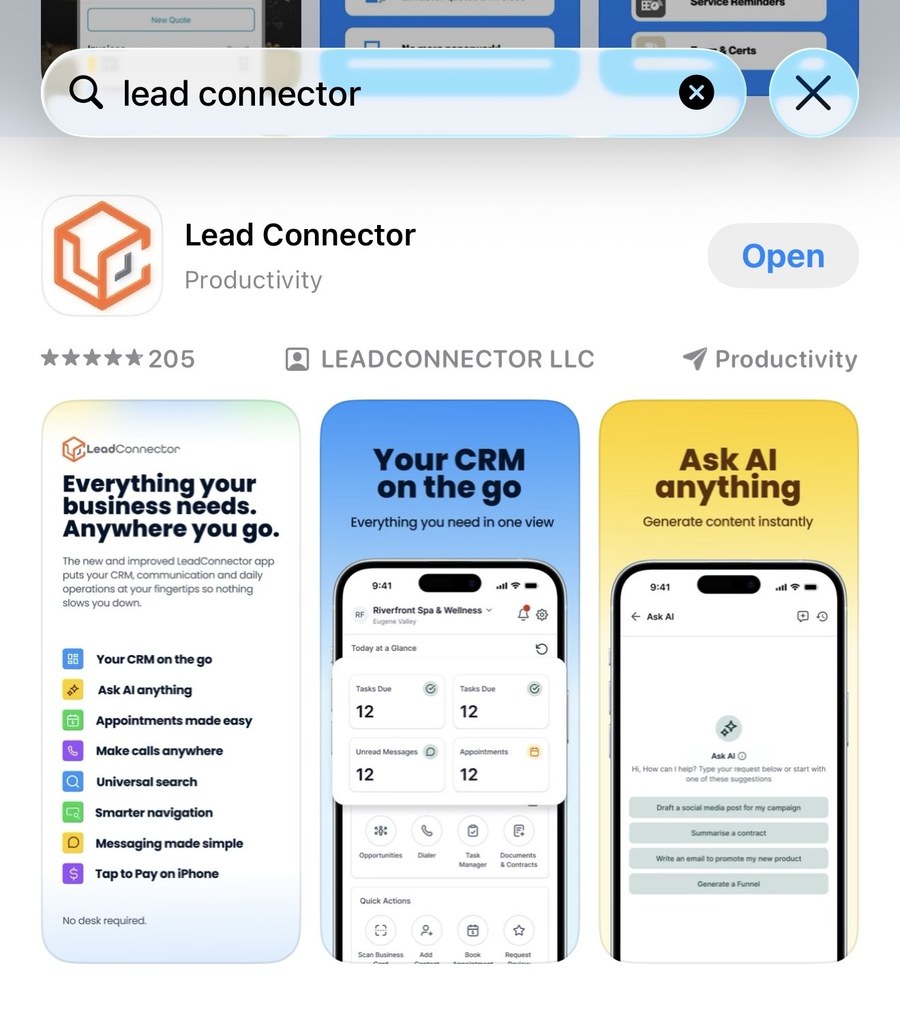
Download the Lead Connector app
Search "lead connector" in the App Store or Google Play and download the app by LEADCONNECTOR LLC. Log in with the same details you use for your CRM in the browser.
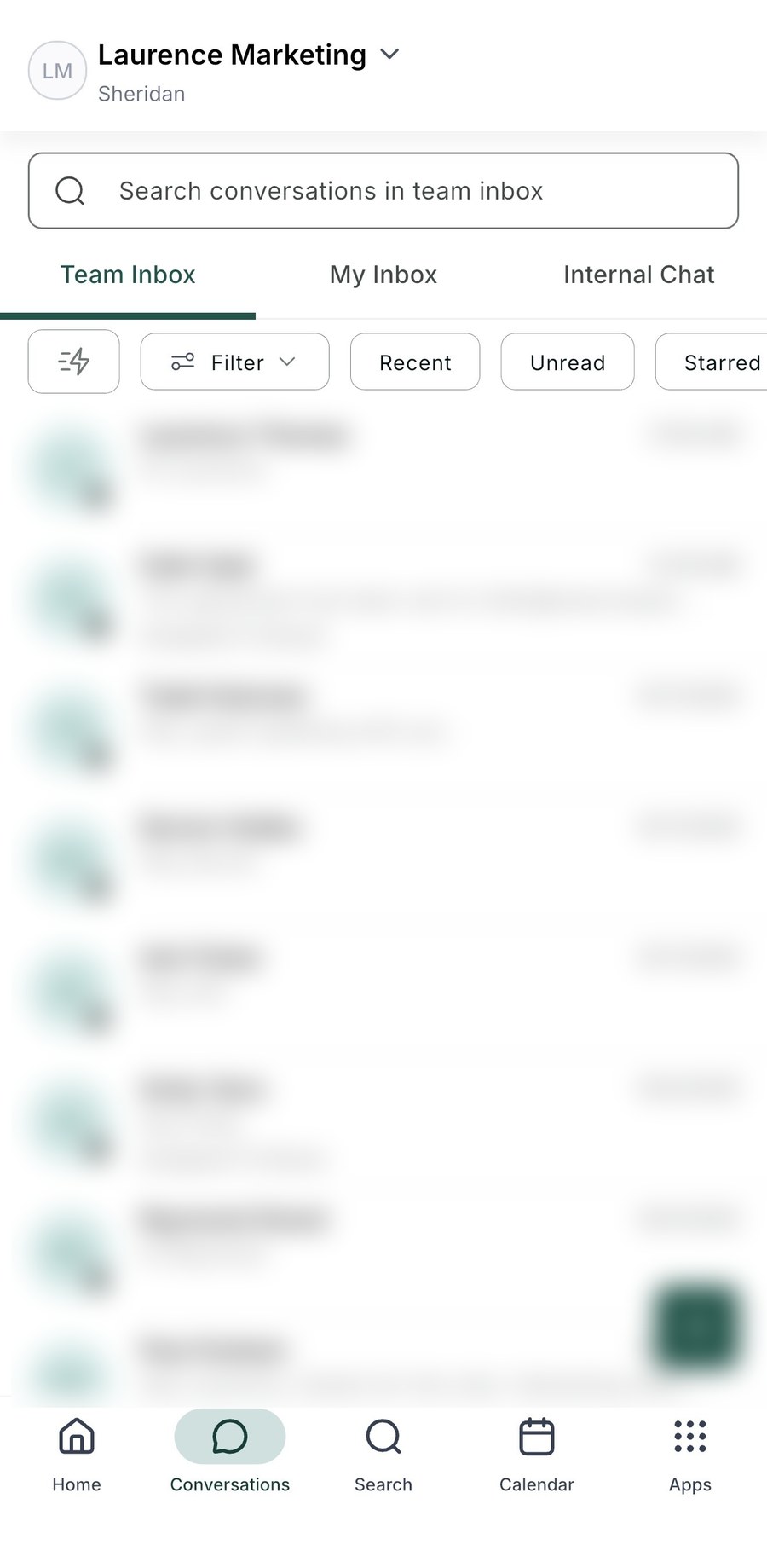
Open the conversation
Tap Conversations in the bottom menu, then tap the prospect. If you can't see them, search by name at the top.
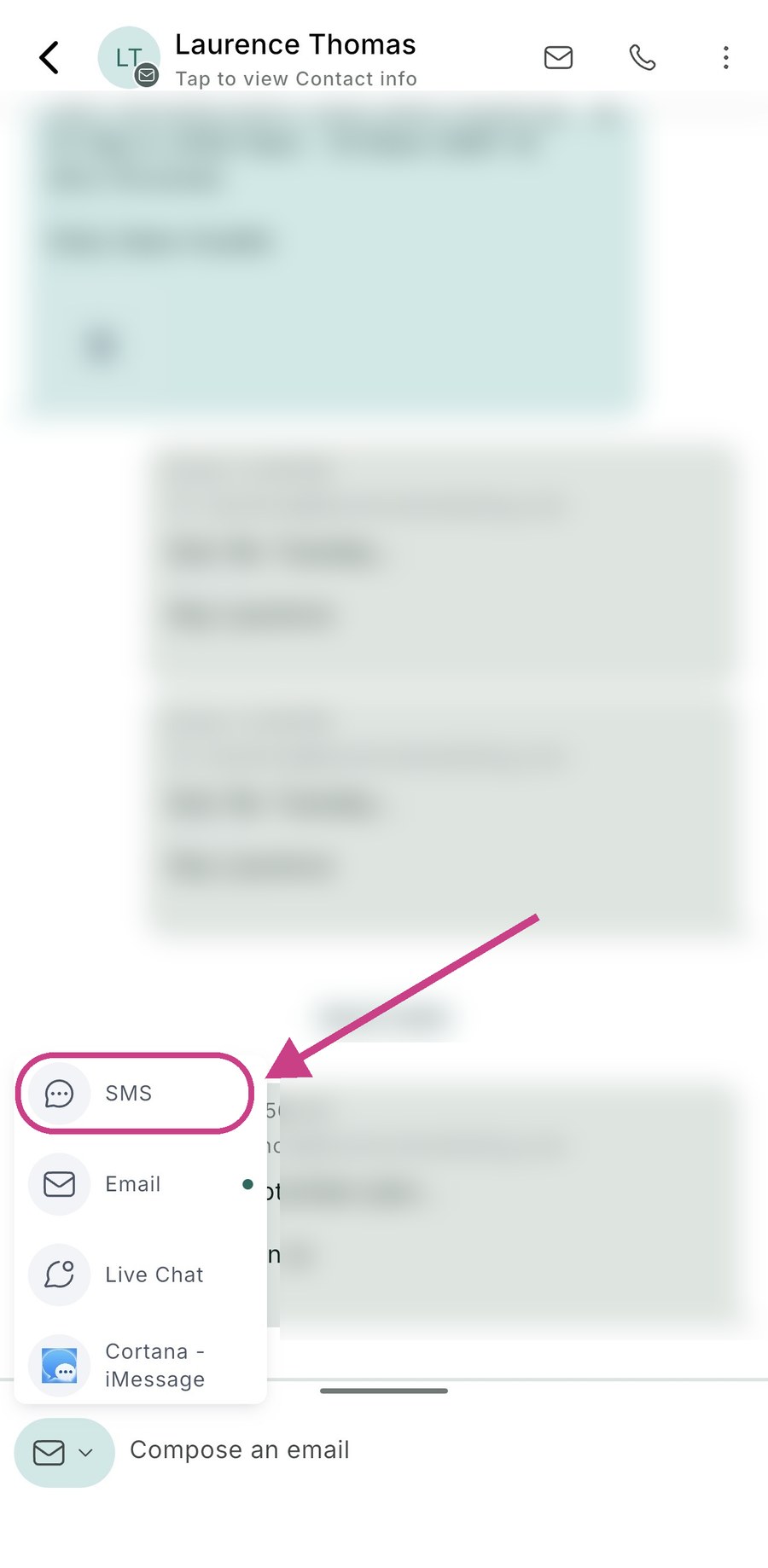
Switch the channel to SMS
Bottom left of the conversation is the channel button. If it says Compose an email, tap the small arrow and pick SMS. This is the most common mistake, so check it every time.
Send the first text
Type the first line ("Hey NAME, [your name] here from [company name]"), swap in their first name and send. Sending it on its own first means their phone lights up with a normal message, and it's why people watch the video that follows.
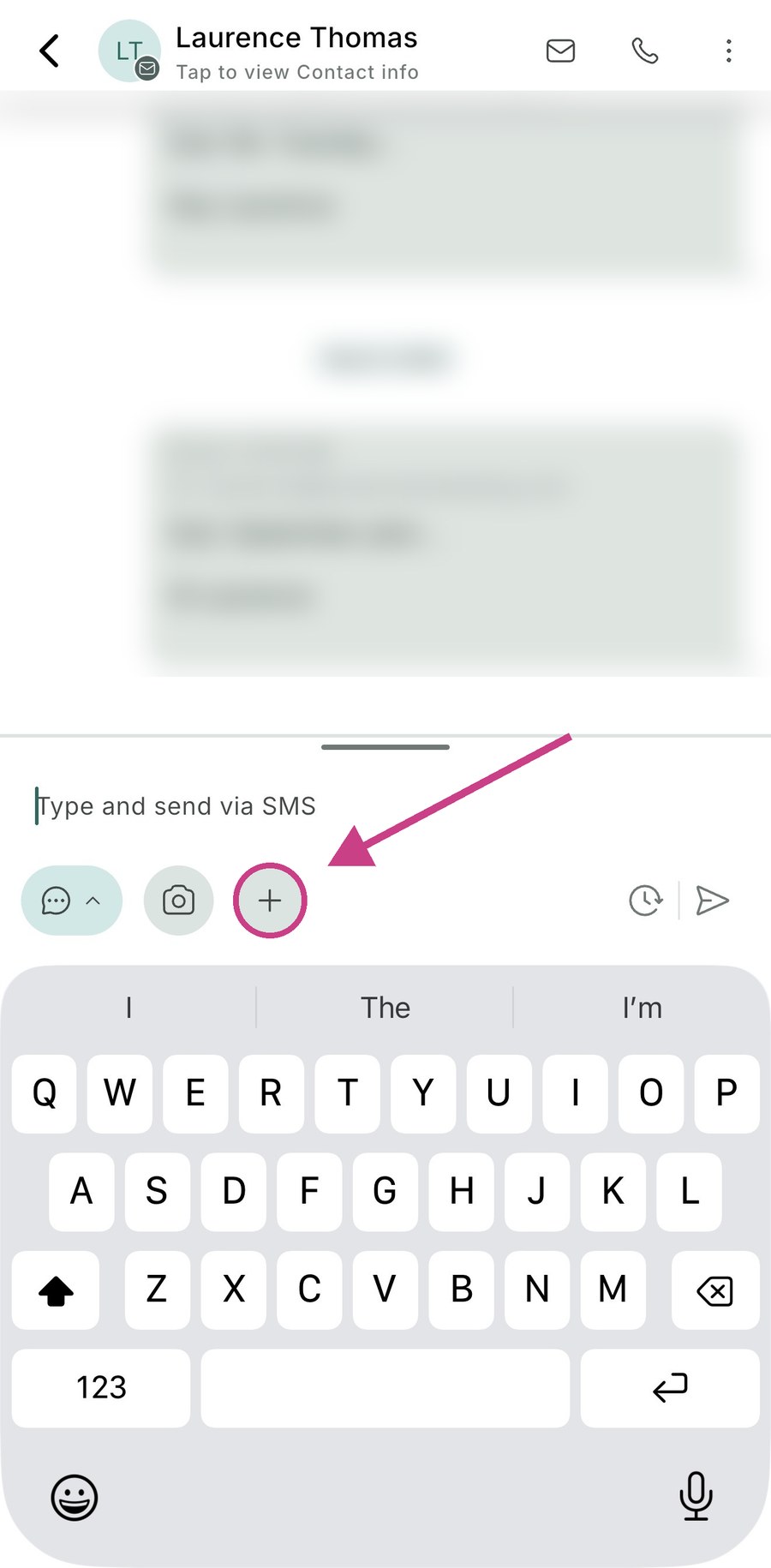
Attach the selfie video
Record the video into your camera roll first so you can watch it back. Then tap the + button next to the camera icon, open your photo library and pick the video.
Check the size, then send
- Keep it short, ideally under 60 seconds. Film at 720p if files come out large
- Under 500KB is safest to arrive as a playable clip
- Bigger files still send, as a tappable link with a preview
- A video turns the SMS into an MMS. That's normal and costs slightly more
Send the final message
Confirmed appointment: follow the video with the resources link. Unconfirmed: set a reminder and send "Did you see the video I sent through?" 4 hours later.
Quick checklist
How to shoot your VSL
Read this before you record. Follow it and your video will look and sound professional from a phone, and we can edit it quickly.
Camera set up
- Record in landscape (horizontal)
- Use a modern smartphone (an iPhone or equivalent is perfect)
- Position the camera at eye level
- Frame yourself from the chest up: not too close, not too far
Lighting
- Face natural light. A window in front of you is ideal
- Avoid bright light behind you, or you'll look like a silhouette
- If you're indoors, turn the lights on so your face is well lit and clear
Audio quality
- Record in a quiet environment
- Avoid echoey rooms. Big empty spaces sound bad
- If you can, use a lapel mic or headphones with a mic
- If not, stay close enough to your phone that your voice is clear
Teleprompter app
- Download a teleprompter app on your phone
- Paste in the script we gave you
- Adjust the scroll speed so it feels natural
- Practice once or twice before you record
Energy
- Get yourself into a high-energy state
- Drink a coffee, move around, get your body going
- Smile before you start
Recording rules
- Press record once and keep it rolling
- If you mess up: pause, take a breath, then restart the sentence
- Try not to stop and start lots of separate clips
- We edit everything on our end and make it look seamless
Delivery tips
- Speak slightly slower than you would in normal conversation
- Emphasize key words
- Add small pauses. They make you sound more confident
- Imagine you're speaking to one specific person, not an audience
- Don't aim for perfect. Aim for natural and believable
What to wear
- Solid colors (avoid busy patterns)
- Look like someone your ideal client would trust
- Clean, simple, professional
Background
- Keep it clean and uncluttered
- Neutral or slightly branded is ideal
- Avoid distractions behind you
Before you hit record
When you're done, send the file to us in your Slack channel.
How to shoot your ads
Read this before you record. Ads are filmed in portrait (vertical), the way people watch on Instagram and Facebook. Follow this and your ads will look and sound professional from a phone.
Camera set up
- Record in portrait (vertical, phone held upright)
- Use a modern smartphone (an iPhone or equivalent is perfect)
- Position the camera at eye level
- Frame yourself from the chest up, face in the upper half of the screen
- Leave some space below your chin, we add captions over the lower part
Lighting
- Face natural light. A window in front of you is ideal
- Avoid bright light behind you, or you'll look like a silhouette
- If you're indoors, turn the lights on so your face is well lit and clear
Audio quality
- Record in a quiet environment
- Avoid echoey rooms. Big empty spaces sound bad
- If you can, use a lapel mic or headphones with a mic
- If not, stay close enough to your phone that your voice is clear
Teleprompter app
- Download a teleprompter app on your phone
- Paste in the ad scripts we gave you
- Adjust the scroll speed so it feels natural
- Practice once or twice before you record
Energy
- Get yourself into a high-energy state
- Drink a coffee, move around, get your body going
- Smile before you start
Recording rules
- Record one clip per ad script and keep it rolling until that ad is done
- If you mess up: pause, take a breath, then restart the sentence
- Start talking straight away. The first 3 seconds are what stop the scroll
- We edit everything on our end and make it look seamless
Delivery tips
- Speak slightly slower than you would in normal conversation
- Emphasize key words
- Add small pauses. They make you sound more confident
- Imagine you're speaking to one specific person, not an audience
- Don't aim for perfect. Aim for natural and believable
What to wear
- Solid colors (avoid busy patterns)
- Look like someone your ideal client would trust
- Clean, simple, professional
Background
- Keep it clean and uncluttered
- Neutral or slightly branded is ideal
- Avoid distractions behind you
Before you hit record
When you're done, send the files to us in your Slack channel.
How to use the sales script
The Sales Script page is built to be used live on your calls. You follow it, fill in the blanks as the prospect talks, and it does the maths for you.
Before the call
Open Sales Script, click New call and type the prospect's name. Read their application answers so you know their numbers going in.
Start the timer
Press play when the call starts. The call runs in 4 sections: Discovery (15 min), Pitch (10 min), Pricing (10 min) and Logistics (15 min). The bar at the top shows if you're ahead or running over.
Fill in the blanks
Type their answers into the pink boxes as they talk. Their numbers flow into the recap and the maths later in the call, so you can read their own words back to them.
Tick the buy-ins
After the recap and each part of the pitch, tick the box once they've agreed. If you can't tick it, don't move on yet.
Lock in the logistics
In Logistics, take payment, send the agreement and onboarding form, and book the kickoff before you hang up. Then choose Closed, Follow-up, Not interested or No-show. You get the next steps for that outcome. Add their email or phone under Prospect contact and press Push to GHL: the call notes go onto their contact in GHL and they get tagged with the outcome. You can also copy the call summary and a follow-up email.
Practice first
Run the full script out loud 3 or 4 times before your first real call, with a friend or on your own. Before you click New call, copy or download the call summary, because a new call clears the script.
Connect your GHL first
Push to GHL saves your call notes and the outcome straight onto the prospect in your GoHighLevel account. It needs a one-time connection.
- In GHL, open the sub-account you take sales calls in and go to Settings > Private Integrations.
- Click Create new integration, name it LM Dashboard and tick View Contacts and Edit Contacts. Nothing else.
- Copy the token GHL shows you and paste it below.
- Your Location ID is in Settings > Business Profile. It's also the code after /location/ in your GHL web address.